

13:00 · Orders
Every order, start to finish
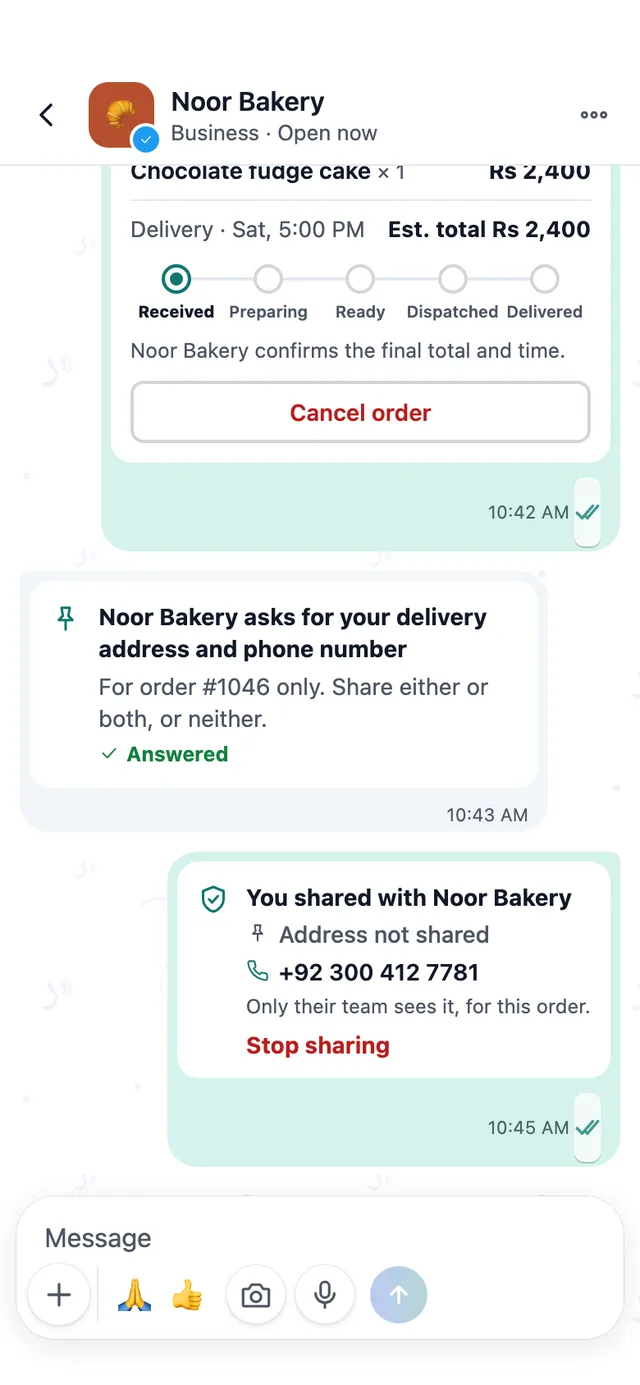
Orders arrive as cards in the chat. You confirm them, and your customer follows each step without having to ask.
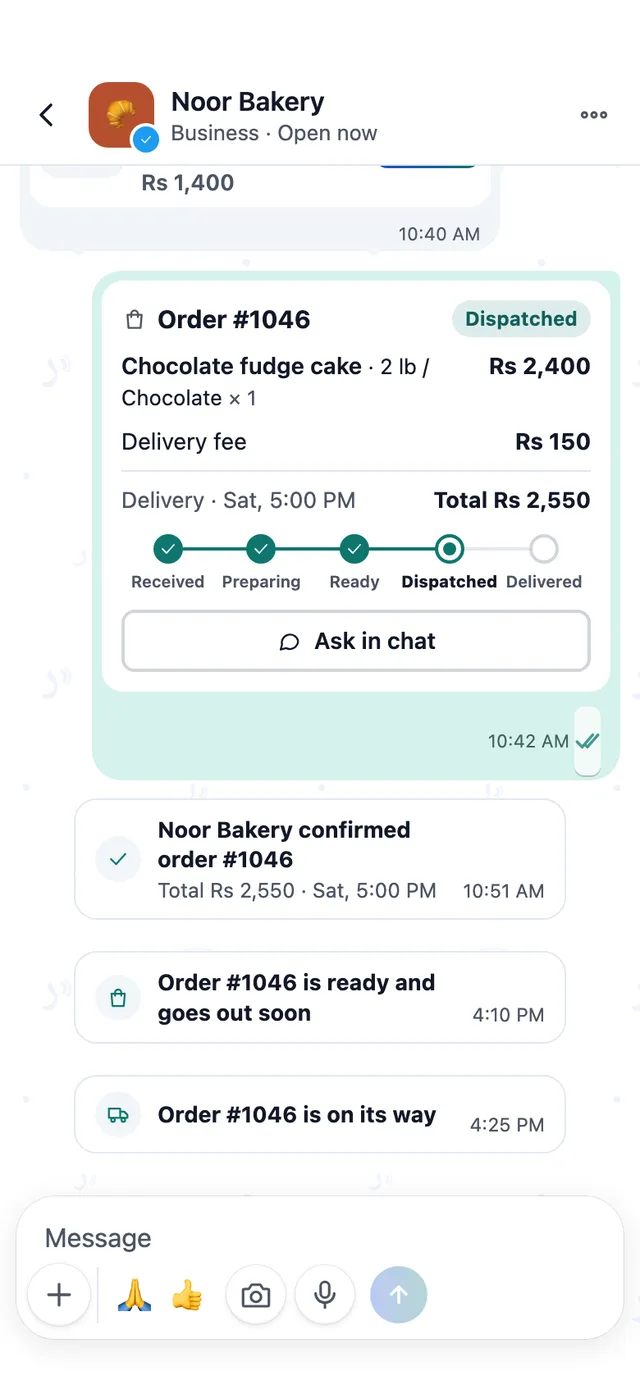
Confirm, and it’s settled
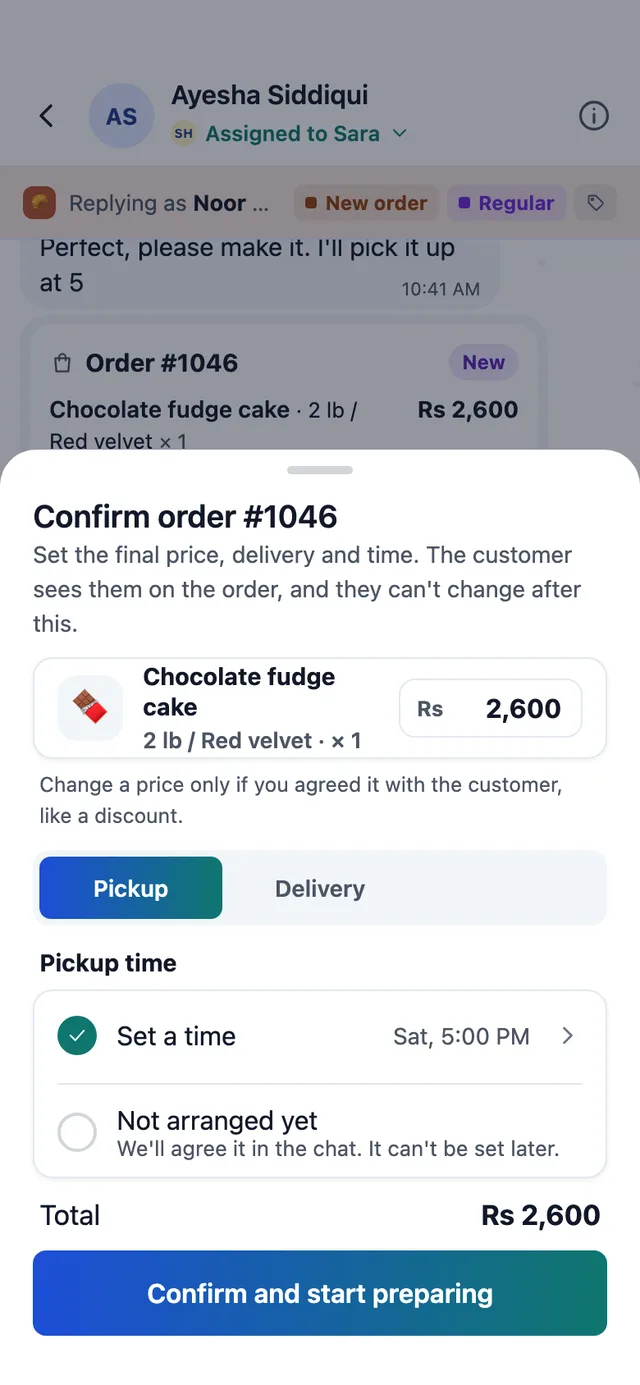
An order starts with an estimated total. You set the final terms once, and they don’t change after that.
- Final price, delivery fee and timeChange a price only if you agreed it, like a discount. If the time isn’t fixed yet, agree it in the chat.
- No surprises laterAfter you confirm, the order stays as it is. A wrong order is cancelled with a reason and placed again.
- Make an order for a customerTake an order over chat and send it to them, already confirmed.
Steps your customer can follow
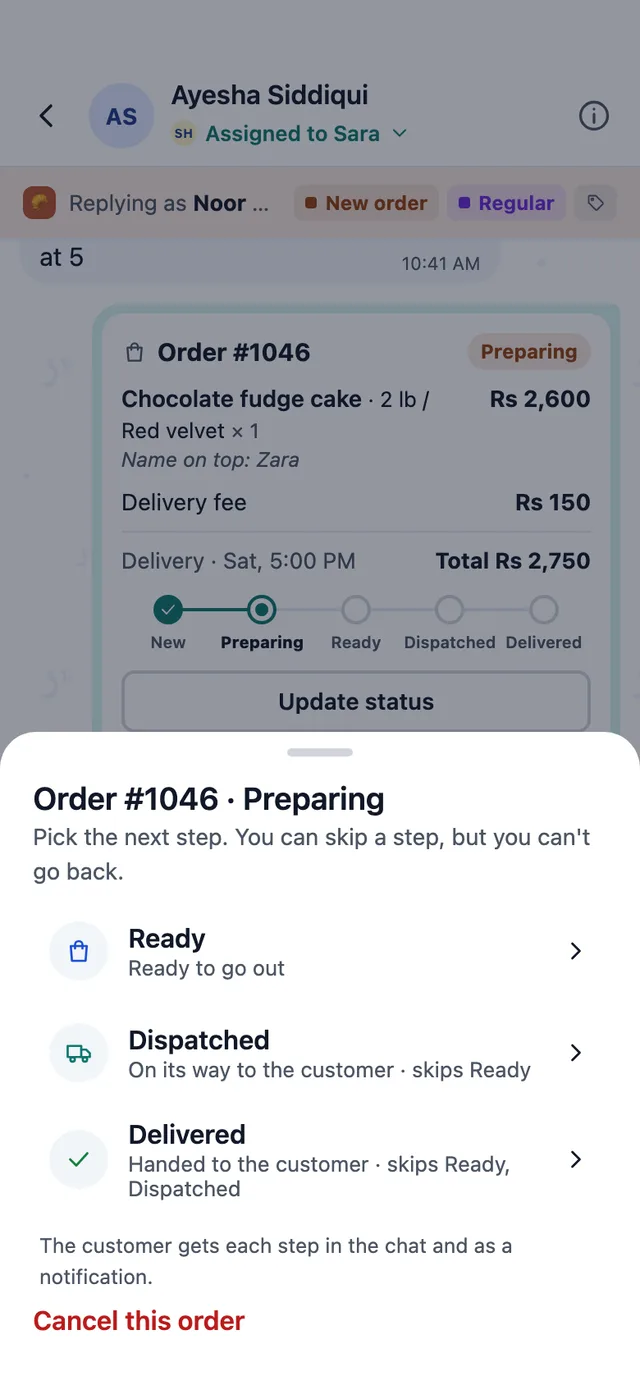
- DeliveryNew, Preparing, Ready, Dispatched, Delivered.
- PickupNew, Preparing, Ready, Picked up.
- Skip ahead, never backMove straight to Ready when it’s quick. Each step reaches the customer in the chat and as a notification.
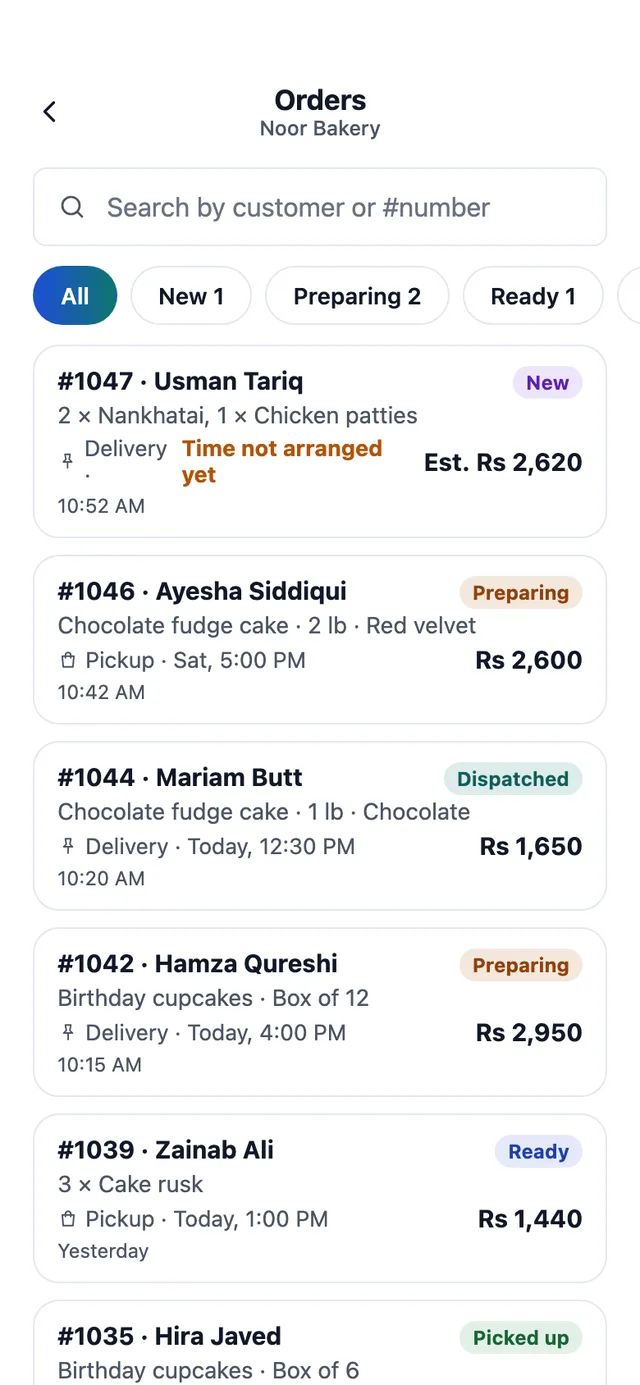
All your orders in one place
- Filter and searchBy status, by customer, or by order number like #1046.
- The chat behind every orderOpen an order to go straight to its conversation.
- Cancel with a reasonOut of stock, can’t deliver there, closed that day. The customer sees why.
Customer details, only when needed
- Ask for what the order needsA pickup asks for a phone number. A delivery asks for the address and phone, and the customer chooses what to share.
- Only your team sees itAnd customers can stop sharing at any time.
Questions
Does Rabt take payments?
No. Rabt doesn’t take payments or a cut. You agree how to pay in the chat, and your customer pays you directly.
Can a customer cancel an order?
Yes, until you confirm it. After that, they ask you in the chat, and you can cancel it with a reason.
Can I change an order after confirming it?
No. Confirmed orders stay as they are, so everyone has the same record. Cancel it with a reason and place a new one.
How do I charge for delivery?
Add a delivery fee when you confirm the order. The customer sees it on the order with the total.
How big can an order be?
Up to 20 different items, and up to 100 of any one item.